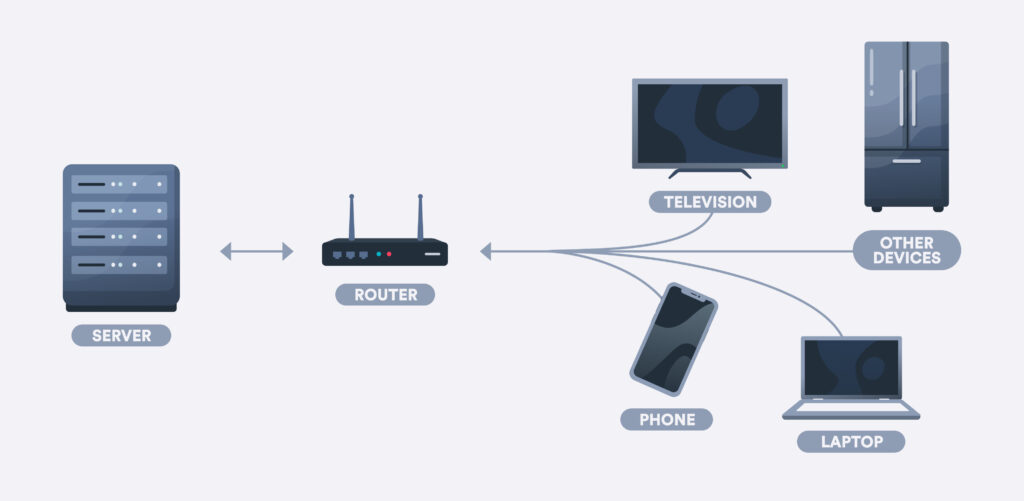
Installing a VPN app on your smartphone or laptop takes less than two minutes. But what happens when you want to unblock content on a Samsung Smart TV, stream on a Roku, secure a PlayStation 5, or stop your Internet Service Provider (ISP) from throttling bandwidth across dozens of smart home devices simultaneously?
Most non-standard streaming hardware and IoT platforms do not support native VPN applications. While Smart DNS offers a partial workaround for regional restrictions, it does not encrypt network traffic or prevent ISP inspection—leaving your connection vulnerable to protocol-based bandwidth throttling during peak streaming hours.
Setting up a router-level VPN solves both problems permanently. By moving encryption to your gateway router, every connected device automatically routes through a secure, location-shifted tunnel. This guide provides a full operational breakdown for configuring network-wide protection, managing split-tunneling, and isolating streaming traffic.
1. Why App-Level VPNs Fail for Whole-Home Streaming
When you install a VPN application on a single device, protection ends at that device’s network interface. Operating a network-wide router deployment changes how traffic is managed across your local area network (LAN).
The Technical Advantages of Gateway Encryption
- Bypasses OS App Restrictions: Devices running proprietary, closed operating systems (such as Roku OS, Samsung Tizen, or LG webOS) receive full encryption without requiring native software.
- Defeats Deep Packet Inspection (DPI): ISPs use DPI to identify high-bandwidth protocols (like 4K video streams or peer-to-peer transfers) and artificially throttle speeds. Router encryption obscures all packet headers, preventing the ISP from identifying what type of traffic you are running.
- Bypasses Device Limits: Most commercial VPN subscriptions cap simultaneous active sessions (e.g., 5 to 10 devices). A router VPN client consumes only one slot on your subscription while protecting an unlimited number of local devices.
2. Hardware Matrix: Selecting the Right Router
Not every home router possesses the processing power or firmware support required to handle real-time network encryption. Modern VPN protocols rely heavily on CPU instruction sets like AES-NI or optimized ARM crypto-extensions.
| Router Tier / Model Class | Recommended Firmware | Protocols Supported | Max Throughput Capability | Best Use Case |
| High-End Custom (e.g., ASUS RT-AX88U Pro, GT-AX11000) | Asuswrt-Merlin | WireGuard, OpenVPN | 600 Mbps – 900+ Mbps | Multi-device 4K streaming & low-latency gaming. |
| Dedicated Hardware (e.g., ExpressVPN Aircove) | AircoveOS (Native) | Lightway, OpenVPN | 600 Mbps – 800 Mbps | Out-of-the-box setup with zero firmware flashing required. |
| Mid-Range / Budget (e.g., GL.iNet Flint 2 / Slate AX) | OpenWrt | WireGuard, OpenVPN | 300 Mbps – 500 Mbps | Portable travel setups or smaller apartments. |
| ISP-Provided Modems (Comcast, Spectrum, BT) | Locked Stock Firmware | None (Unsupported) | N/A | Must be placed in Bridge Mode behind a secondary VPN router. |
3. Step-by-Step Setup: Flashing & Configuring Your Gateway
Setting up a router VPN requires configuring your primary gateway or adding a dedicated secondary router behind your existing modem.
1.Set ISP Modem to Bridge Mode:Prepare your network architecture.
If your ISP provided a combination modem/router unit, log into its management page (typically 192.168.1.1 or 192.168.0.1) and enable Bridge Mode or IP Passthrough. This disables local Wi-Fi routing on the ISP box and passes your public IP directly to your main VPN router, preventing Double NAT conflicts.
2.Obtain VPN Configuration Credentials:
Log into your VPN provider’s web account on a computer. Navigate to the Manual Setup / Router dashboard. Select your target country location and generate either a WireGuard configuration file (.conf) or an OpenVPN profile (.ovpn) alongside your dedicated service credentials.
3.Upload Profile to Router Administration Panel:
Access your router’s administration panel in a browser. Navigate to the VPN / Network tab and select VPN Client. Click Add Profile, upload the .conf or .ovpn file from Step 2, and enter the assigned service credentials.
4.Enable the Tunnel & Verify Leak Protection:
Activate the VPN connection profile. On a device connected to the router’s Wi-Fi, open a browser and visit dnsleaktest.com. Verify that your displayed IP address reflects your target VPN location and that no local ISP DNS servers appear in the test results.
4. Advanced Network Control: Split Tunneling & Device Isolation
Routing 100% of your home’s network traffic through an encrypted server thousands of miles away can disrupt local services, such as online banking apps or local wireless printing. To prevent this, modern router firmware uses Split Tunneling (or Policy-Based Routing).
Implementing “VPN Director” / Device Grouping
- On ASUS (Asuswrt-Merlin): Open VPN > VPN Director. Click Add New Rule, assign your Smart TV or Roku’s local IP address (e.g.,
192.168.1.150) to the VPN Interface, and leave other devices routed through the default WAN interface. - On ExpressVPN Aircove: Open the router interface, drag your Smart TV icon into a Device Group labeled “Streaming – US”, and leave your primary PC in the “No VPN” group.
5. Troubleshooting Router-Level Streaming Issues
Issue 1: Streaming Services Block the Router’s IP Address
- Cause: Thousands of users are sharing the same commercial VPN exit node, triggering automated anti-proxy flags on platforms like Netflix or BBC iPlayer.
- Solution: If using OpenVPN or WireGuard, import a Dedicated IP configuration profile from your provider, or cycle through alternative server profiles within your router dashboard.
Issue 2: Local Network Devices (Printers/NAS) Are Inaccessible
- Cause: The VPN tunnel is overriding local IP subnets, severing communication between LAN devices.
- Solution: Enable Allow Local Subnet Access (or Enable LAN Access) inside your router’s client settings panel to ensure devices on
192.168.1.xcan communicate directly without entering the encrypted tunnel.
Frequently Asked Questions (FAQ)
Can I run a VPN on a mesh Wi-Fi system like Eero or Google Nest Wi-Fi?
Most consumer mesh systems (including Google Nest Wi-Fi and Amazon Eero) do not natively support running a VPN client at the gateway level. To protect mesh devices, you must connect the mesh system’s primary node behind an upstream VPN-compatible router placed in bridge mode.
Will setting up a router VPN lower my internet speeds across the whole house?
If your router uses a slow, single-core processor, encrypting high-throughput data can create a processing bottleneck. Modern dual-core or quad-core routers running light protocols like WireGuard typically retain 80% to 90% of base ISP speeds.
What happens if the VPN router connection drops?
High-end router firmwares include an integrated Network Kill Switch. If the VPN connection experiences a momentary drop, the router automatically blocks outgoing traffic for assigned devices until the secure tunnel re-establishes, preventing accidental data leaks.